
วิธีเปิดใช้งาน Two-Factor Authentication สำหรับธุรกรรมเกี่ยวกับสินทรัพย์ดิจิทัล บนแอปฯ InnovestX
9 ก.ย. 2569
วิธีเปิดใช้งาน 2 Factor-Authentication บนแอปพลิเคชัน
เปิดใช้งาน 2-Factor-Authentication
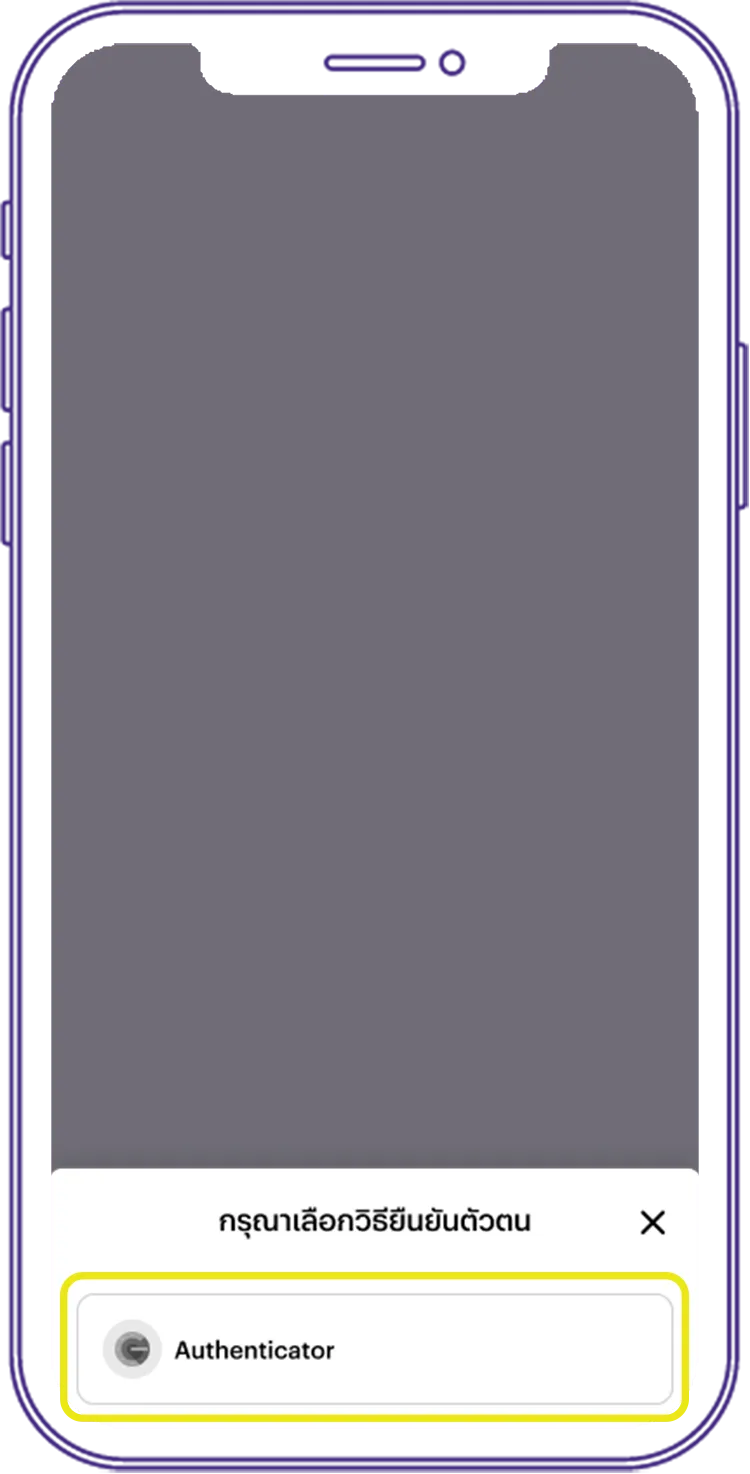
หลังจากยืนยันการถอนเหรียญ เลือก “Authenticator”
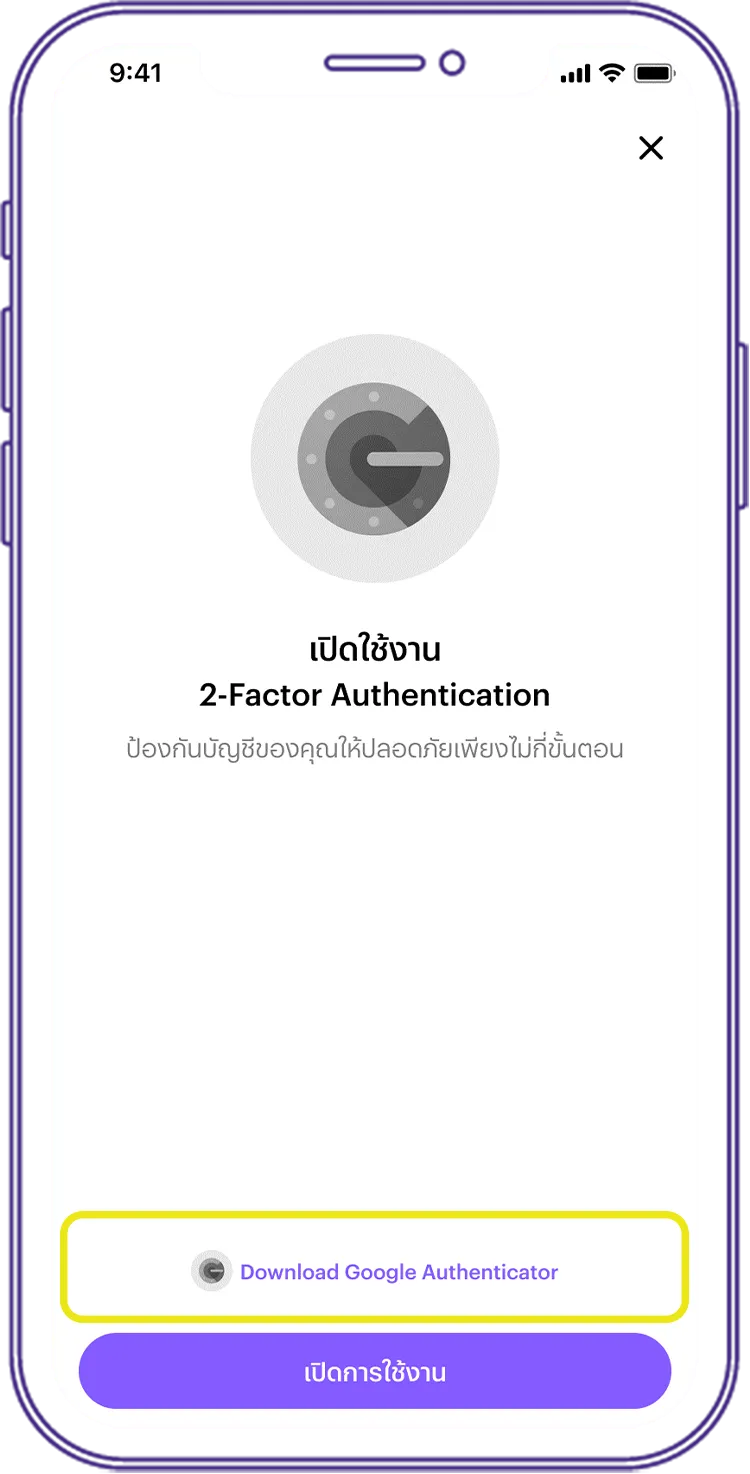
ติดตั้งแอปพลิเคชัน Google Authenticator บนมือถือโดยเลือก “Download Google Authenticator” เพื่อทำการติดตั้ง
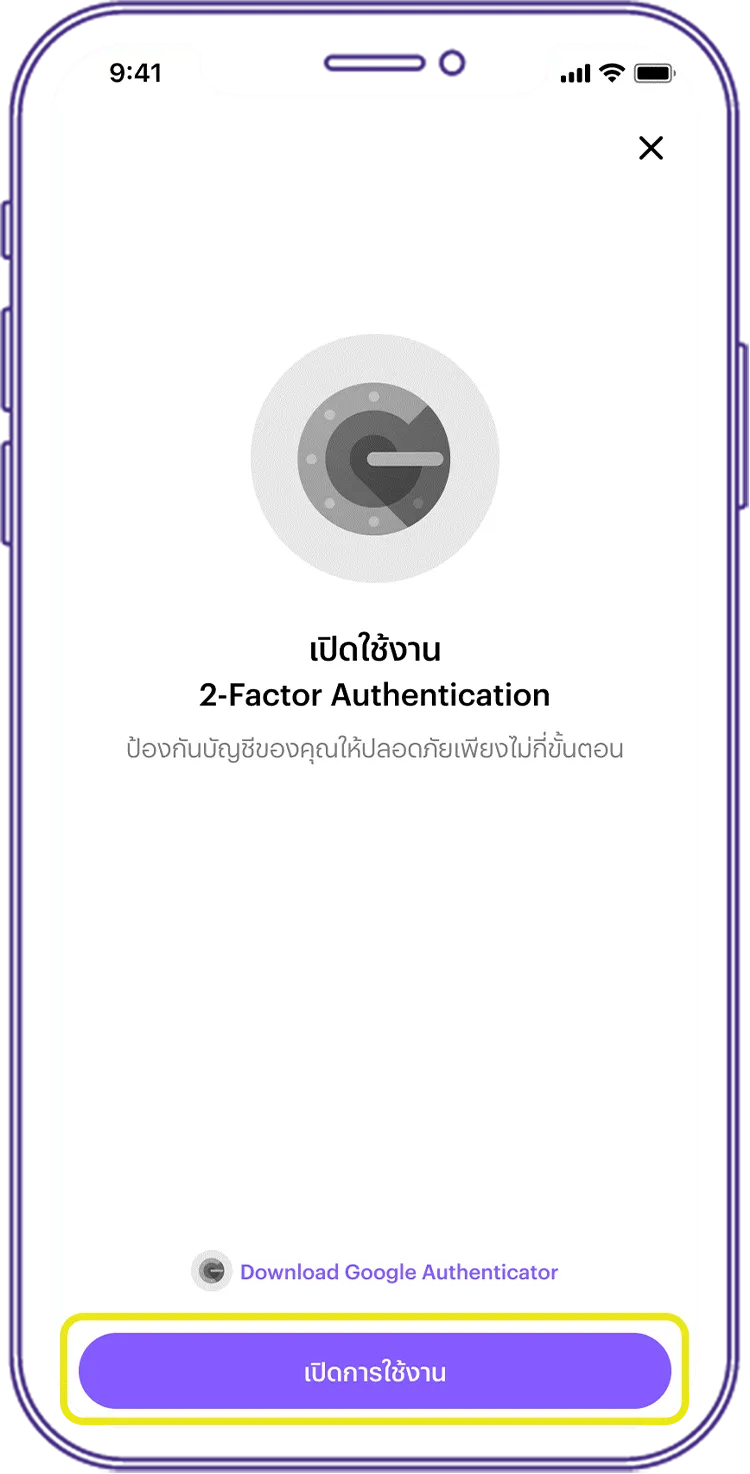
หลังจากติดตั้งสำเร็จ เลือก “เปิดการใช้งาน”
ดาวน์โหลดแอปพลิเคชัน Google Authenticator
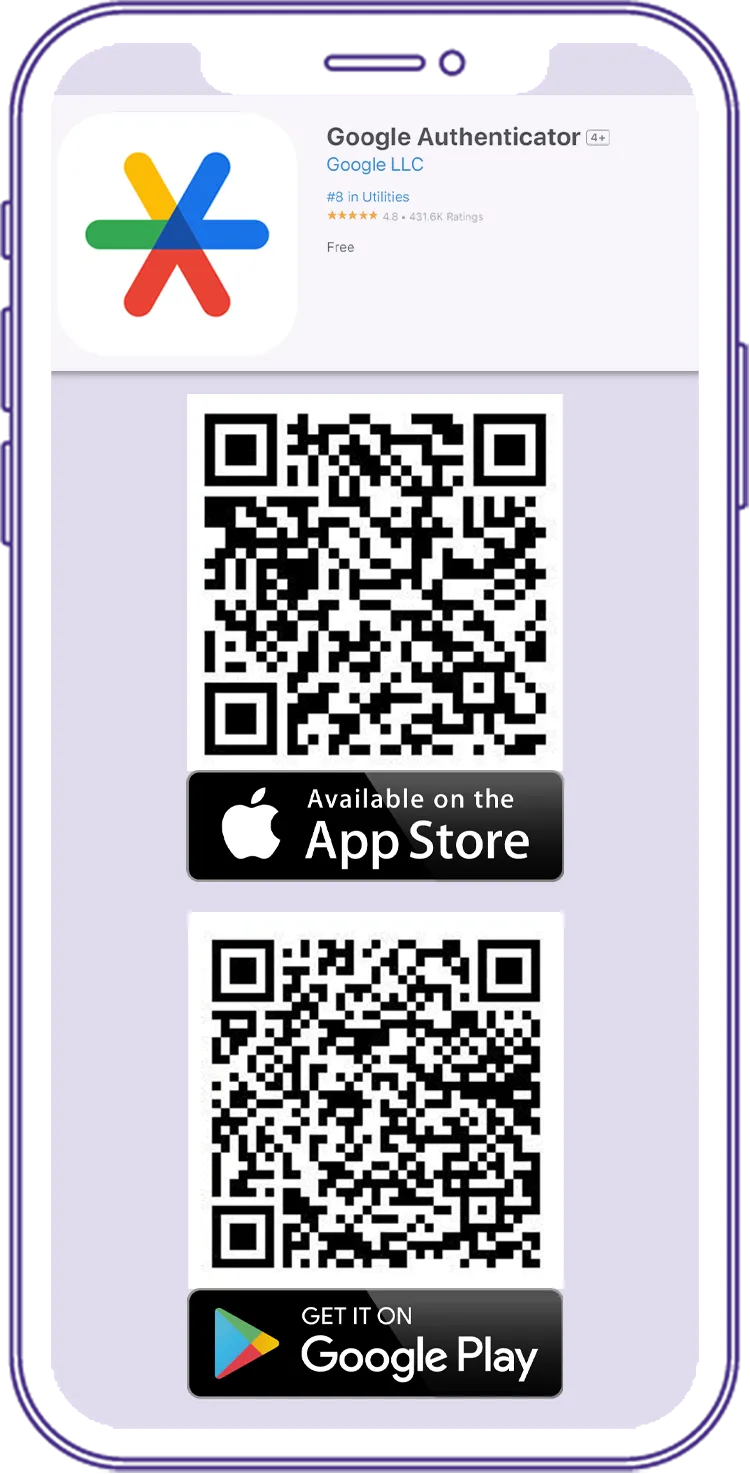
ลิงค์ดาวน์โหลดสำหรับ ios:
Google Authenticator on the App Store (apple.com)
ลิงค์ดาวน์โหลดสำหรับ android:
https://play.google.com/store/apps/details?id=com.google.android.apps.authenticator2
เชื่อมต่อ 2-Factor Authentication
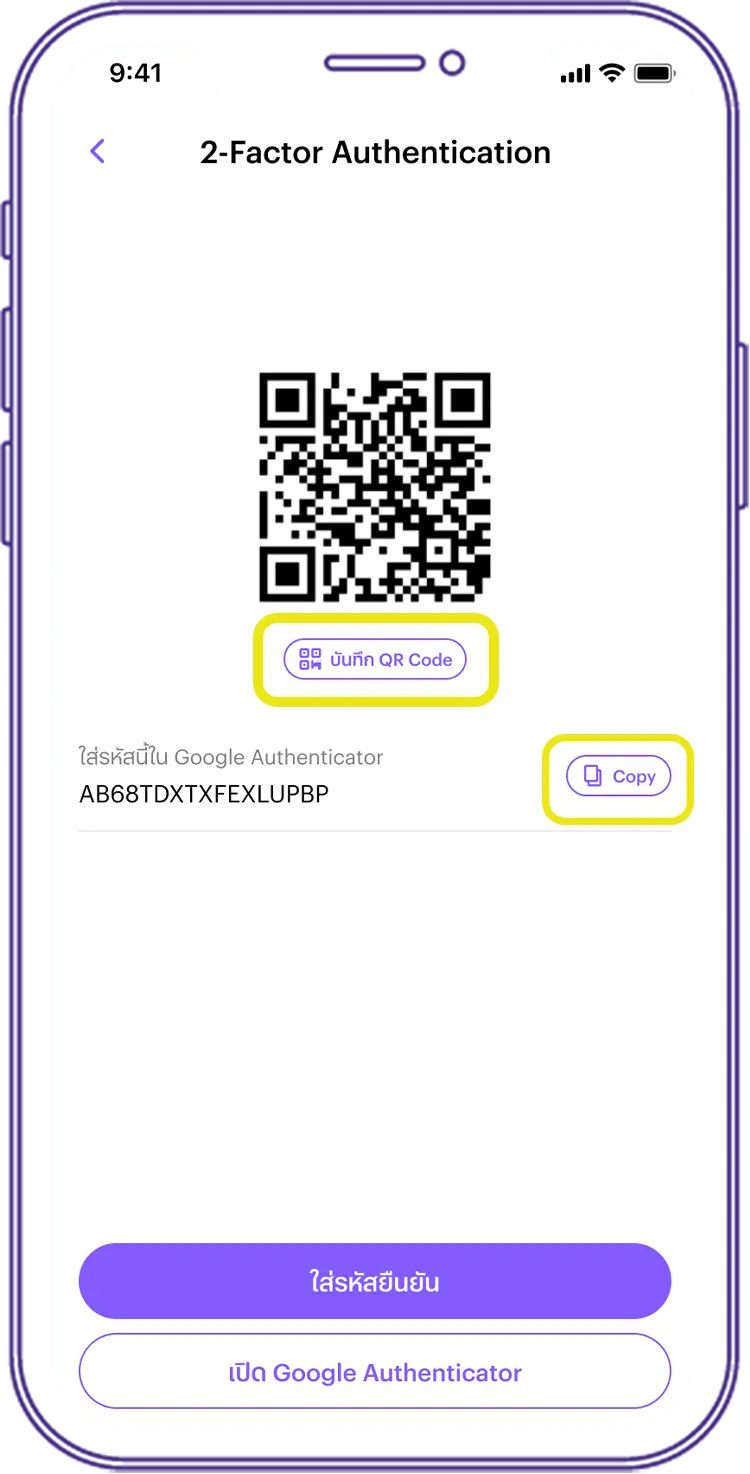
บันทึก QR code หรือคัดลอกรหัสบนแอปพลิเคชัน InnovestX
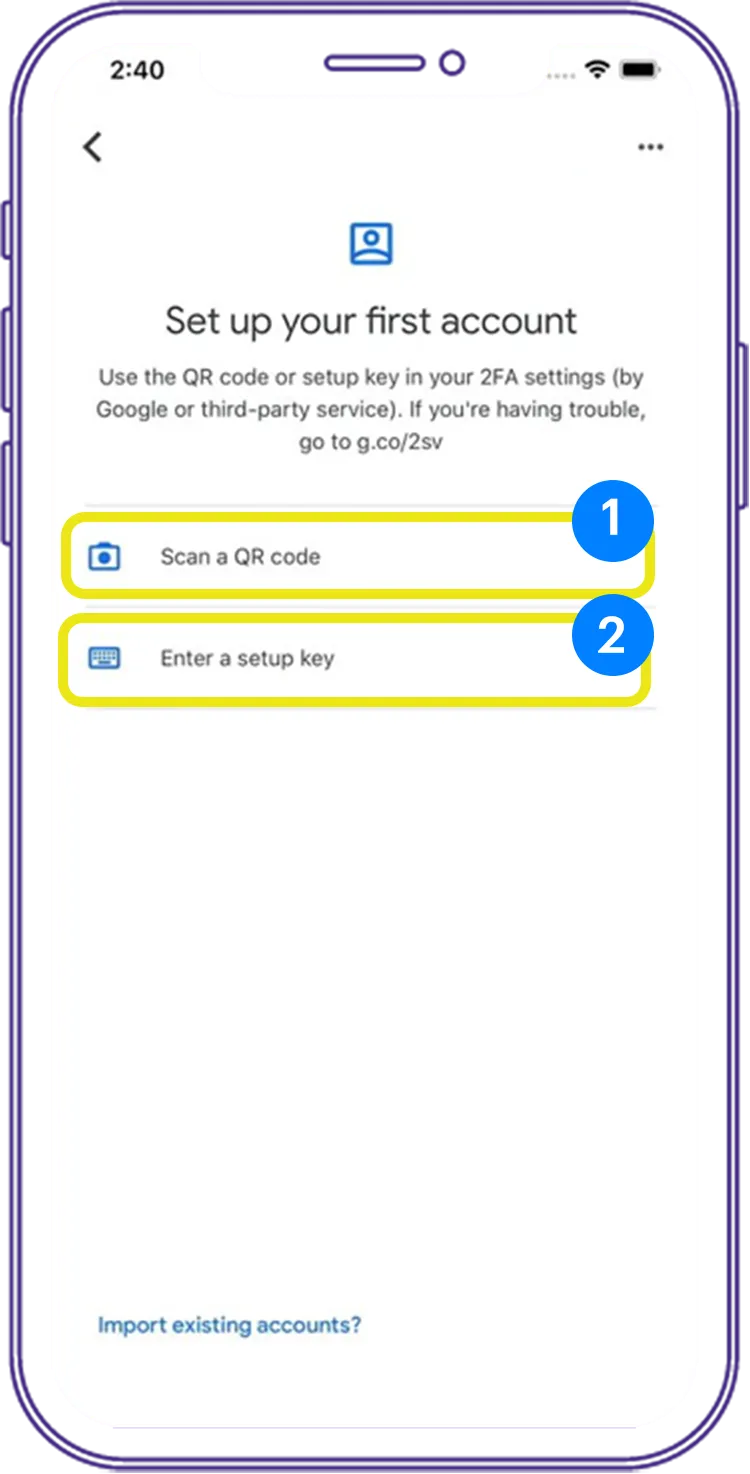
Scan QR code หรือ ใส่รหัสบนแอปพลิเคชัน Google Authenticator
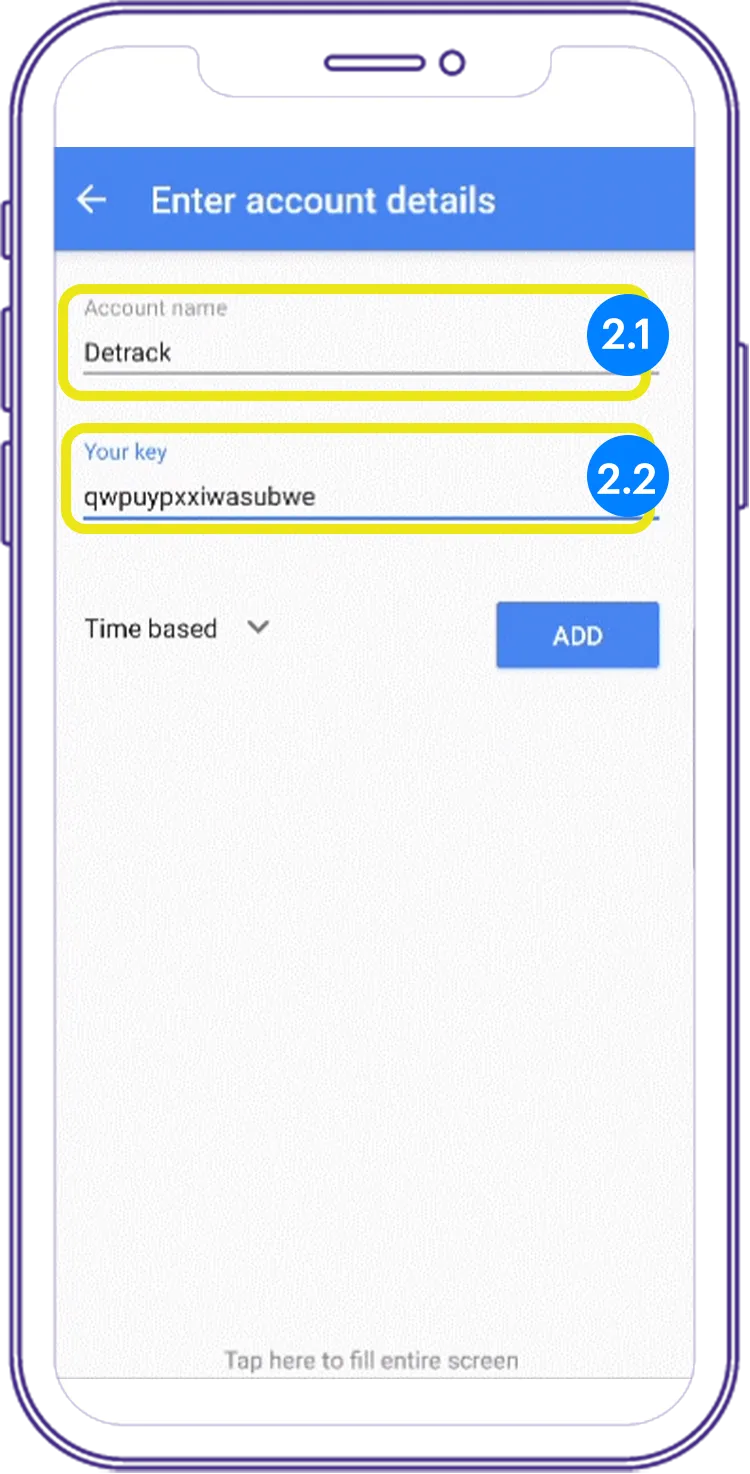
สามารถเลือกวิธีการเปิดใช้งาน 2 Factor-Authentication ได้ 2 วิธี 1. สแกน QR Code : สแกน QR Code ที่ปรากฏ ผ่านแอปพลิเคชัน Goggle Authenticator โดยเลือกที่ “Scan a QR code” และทำการสแกน QR Code 2. กรอก Setup Key : คัดลอกรหัสที่ปรากฏไปยังแอปพลิเคชัน Google Authenticator โดยเลือกที่ “Enter a setup key” 2.1 Account Name: สามารถตั้งชื่อได้ตามต้องการ (แนะนำการตั้งชื่อเป็น InnovestX หรือ INVX) 2.2 Your Key: วางรหัสที่คัดลอกมาจากแอปพลิเคชัน InnovestX หลังกรอกข้อมูลสำเร็จ เลือก “Add”
กรอกรหัส 2-Factor Authentication
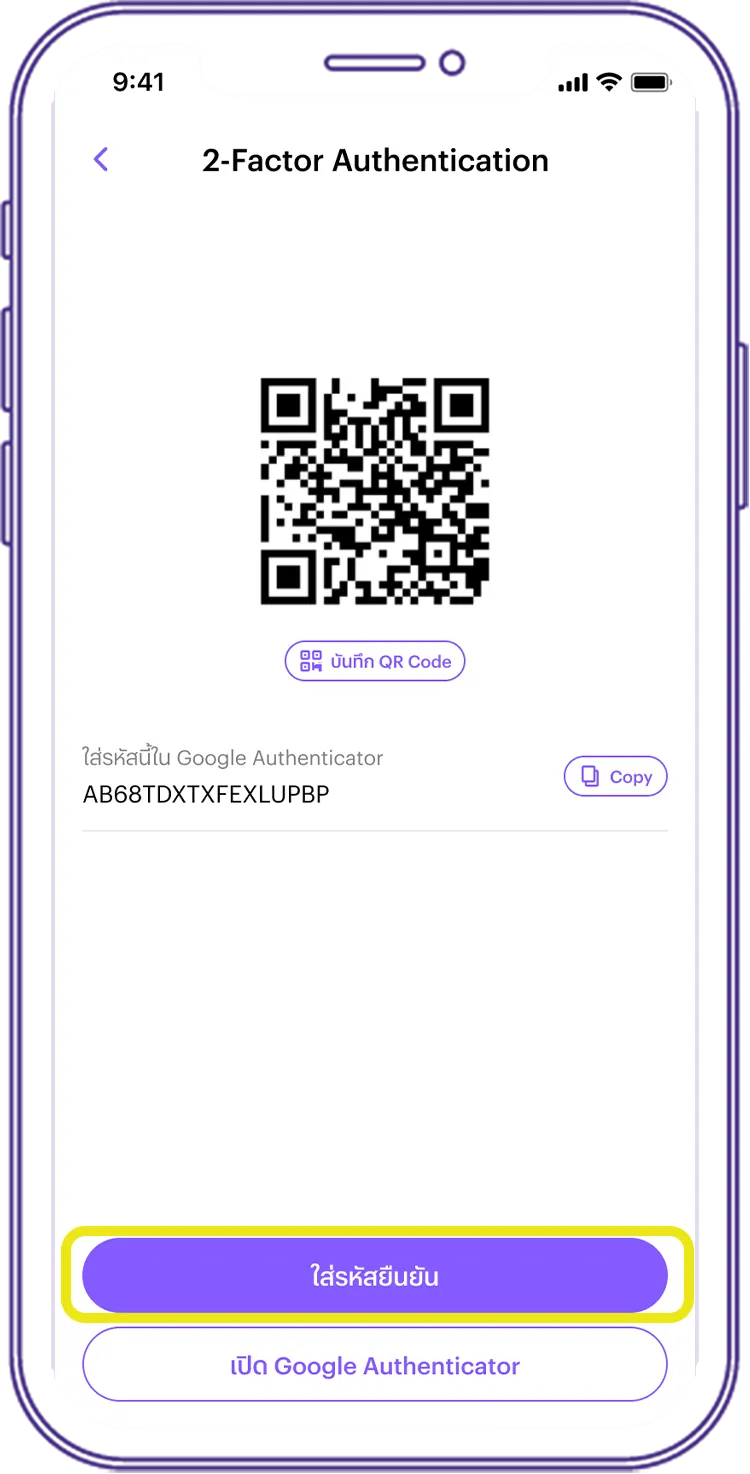
หลังจากสแกน QR หรือคัดลอกรหัส ใส่แอป Authenticator ของลูกค้าสำเร็จ เลือก “ใส่รหัสยืนยัน”
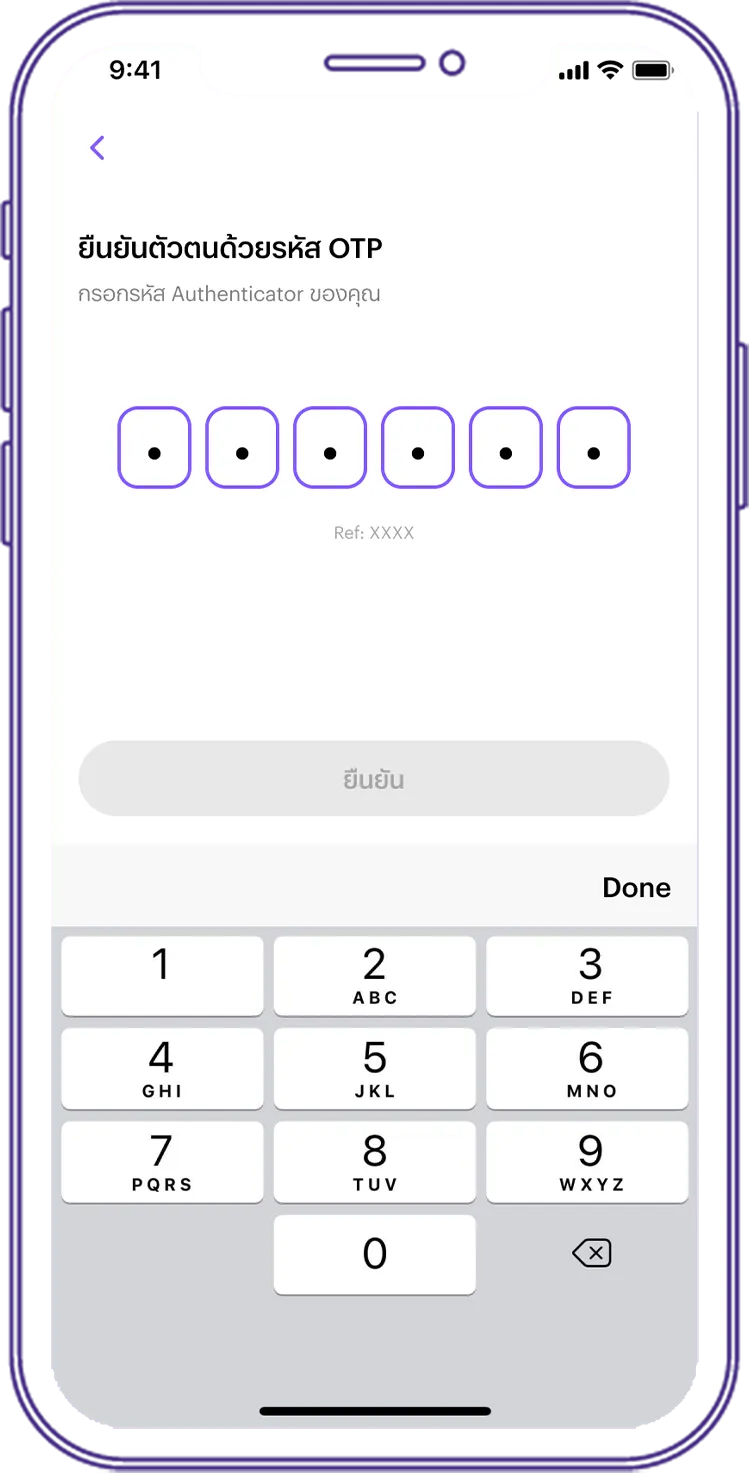
กรอกรหัส OTP บนแอป Authenticator เพื่อเปิดใช้งาน
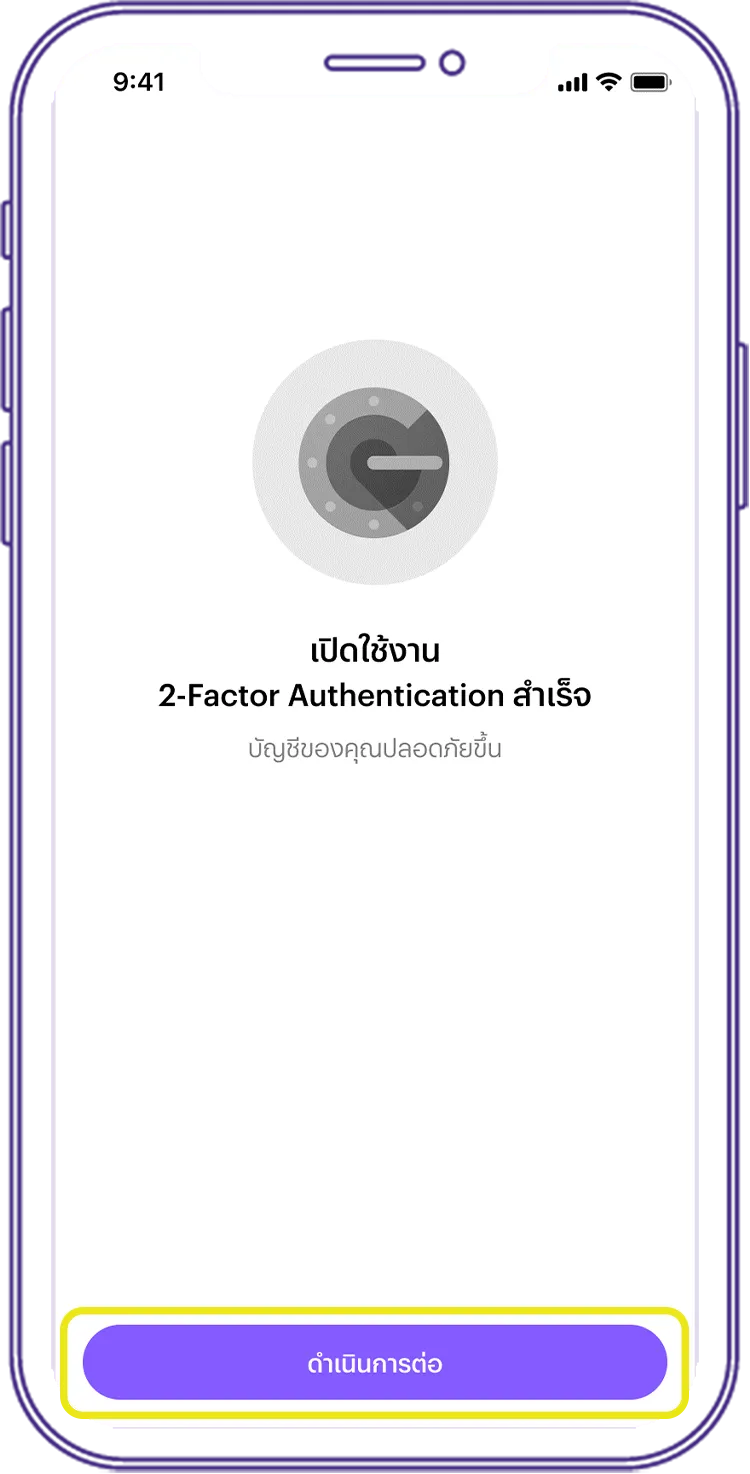
เปิดใช้งานสำเร็จ เลือก “ดำเนินการต่อ”